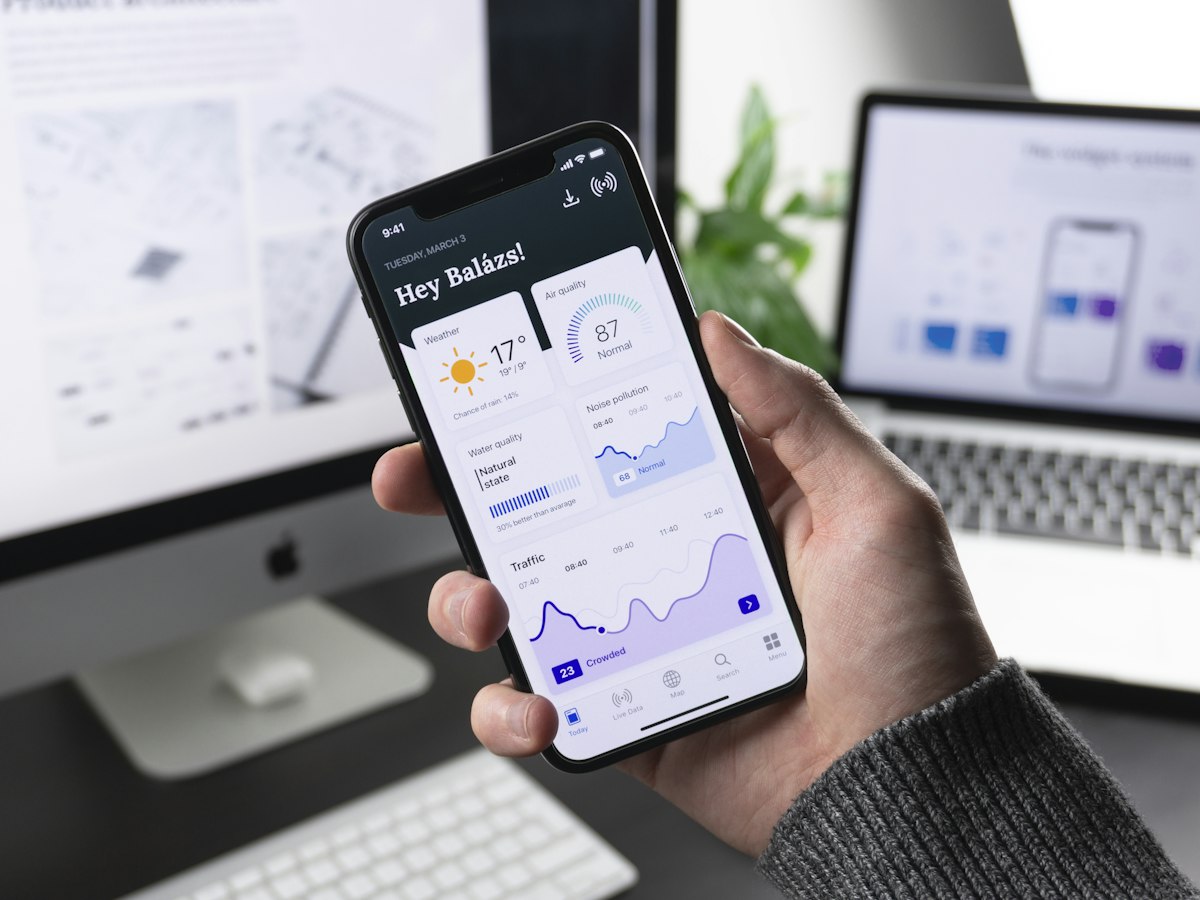

Controlling data usage is crucial for Kenyan online workers. The right apps and settings can save you 40-60% on monthly data costs. Here’s your complete implementation guide.
Top Data Monitoring Apps
1. My Data Manager (Best Overall)
Available: Android & iOS (Free)
Key features:
- Real-time data tracking
- App-by-app usage breakdown
- Alerts at 80%, 90%, 100% usage
- International roaming tracker
- WiFi vs mobile data separation
- Historical usage graphs
Why it’s best:
- Simple, clean interface
- Accurate tracking
- Low battery usage
- Works across carriers
Setup (5 minutes):
- Download from Play Store/App Store
- Set your billing cycle start date
- Enter your data plan size (e.g., 20GB)
- Set alerts (80% warning, 95% critical)
- Enable notifications
Real user result: “Cut my data use from 25GB to 15GB in first month just by seeing which apps were eating data.” - VA, Nairobi
2. GlassWire (Best for Detailed Analysis)
Available: Android (Free with premium option)
Key features:
- Real-time monitoring with live graph
- Firewall to block apps from using data
- Alerts for unusual data spikes
- Background data monitor
- Per-app data history
- Widget for home screen
Best for:
- Tech-savvy users
- Those who want granular control
- Debugging mystery data usage
Setup:
- Install GlassWire
- Grant necessary permissions
- Enable firewall feature
- Set up custom alerts
- Block non-essential apps from background data
Pro tip: Use the firewall to block all apps except work apps during work hours.
3. Datally (by Google)
Available: Android only (Free)
Features:
- Per-app data usage
- App-by-app data blocking
- WiFi finder (shows nearby open networks)
- Daily/weekly/monthly reports
- Data saver mode
- Guest mode (limit guest device usage)
Why use it:
- Made by Google (reliable)
- Simple blocking mechanism
- Built-in WiFi finder helps you get off mobile data
Setup:
- Install Datally
- Enable data saver
- Block data for social media apps
- Use WiFi finder when data is low
Limitation: Android only, no iOS version
4. Data Usage Monitor
Available: Android (Free with ads)
Features:
- Simple daily usage widget
- Lock screen widget
- Hourly usage breakdown
- Data speed test
- Export usage reports
- Multiple SIM support
Best for:
- Those who want at-a-glance monitoring
- Dual SIM users
- Minimal interface preference
Widget advantage: See data usage without opening app.
5. Built-in Phone Monitors
Android (Best native option):
Location: Settings → Network & Internet → Data Usage
Features:
- Total usage by billing cycle
- App-by-app breakdown
- Set data warning level
- Set hard data limit (auto-cutoff)
- Background data restrictions
iOS:
Location: Settings → Cellular
Features:
- Current period usage
- Per-app usage
- Enable/disable cellular per app
- Reset statistics
Limitation: Less detailed than third-party apps, but good enough for basic monitoring.
Essential Phone Settings
Android Data-Saving Settings
1. Enable Data Saver Mode
Location: Settings → Network & Internet → Data Saver
What it does:
- Restricts background data for all apps
- Apps only use data when open
- Reduces automatic sync
Exception list: Add work-critical apps (WhatsApp, email)
Impact: Saves 30-40% of data
2. Restrict Background Data Per App
Location: Settings → Apps → [Select app] → Mobile Data → Background Data
Turn OFF for:
- Facebook, Instagram, Twitter, TikTok
- YouTube (unless work-related)
- Games
- Shopping apps
- News apps
- Any non-essential apps
Keep ON for:
- WhatsApp (client communication)
- Email apps
- Work platforms (Upwork, Fiverr)
- Banking apps
3. Disable Auto-Updates
Location: Play Store → Settings → Network Preferences → Auto-update apps
Select: Over WiFi only
Manual update schedule: Once weekly on WiFi
Impact: App updates can consume 500MB-2GB monthly
4. Limit Video Quality
YouTube:
- Settings → Data Saving → On
- Default video quality: 360p or 480p
Netflix:
- App Settings → Cellular Data Usage → Save Data
Facebook/Instagram/Twitter:
- Settings → Media → Never autoplay videos
- High quality uploads: OFF
5. Disable Cloud Auto-Sync
Google Photos:
- Settings → Backup & Sync → Turn OFF
- Or: Back up using WiFi only
Google Drive:
- Settings → Transfer photos & videos only over WiFi
Dropbox/OneDrive:
- Settings → Camera Upload → WiFi only
Impact: Photo sync can use 1-3GB monthly
iOS Data-Saving Settings
1. Enable Low Data Mode
Location: Settings → Cellular → Low Data Mode
What it does:
- Pauses automatic downloads
- Disables background app refresh
- Reduces video streaming quality
- Pauses iCloud syncing
Impact: 25-40% data savings
2. Disable App Cellular Data
Location: Settings → Cellular → Scroll down to app list
Turn OFF for:
- Social media apps
- Video streaming apps
- Music streaming (use downloaded)
- Games
- Non-essential apps
3. Disable Background App Refresh
Location: Settings → General → Background App Refresh
Select: Off or WiFi only
Or: Disable individually for non-work apps
4. Disable Auto-Downloads
Location: Settings → App Store → App Downloads
Set: Manual downloads only
Location: Settings → Music → Automatic Downloads → Off
5. Optimize iCloud
Location: Settings → [Your Name] → iCloud
Photos: Upload on WiFi only iCloud Drive: Download on WiFi only iCloud Backup: WiFi only
App-Specific Settings
WhatsApp (Major Data Consumer)
Android & iOS:
Location: Settings → Storage and Data
Key settings:
-
Media auto-download:
- Photos: WiFi only
- Videos: WiFi only
- Documents: WiFi only
-
Media quality:
- Photo upload quality: Auto (not High)
- Video upload quality: Auto
-
Low data usage for calls:
- Turn ON (reduces call quality slightly but saves 50% data)
Group management:
- Mute media-heavy groups
- Download group media manually
- Consider text-only groups for work
Impact: WhatsApp can use 500MB-2GB monthly. These settings cut it to 100-400MB.
Facebook (Biggest Data Drain)
Better option: Use Facebook Lite (90% less data)
If using regular Facebook:
Location: Settings → Media
-
Videos:
- Autoplay: Never
- Upload quality: SD
-
Photos:
- Upload HD photos: Off
-
Stories:
- Auto-play: Off
Location: Settings → Data Saver
- Enable data saver mode
Impact: Regular Facebook uses 1-3GB monthly. Settings reduce to 300-800MB. Facebook Lite: 100-300MB.
Location: Settings → Account → Cellular Data Use
- Use less data: Turn ON
- Upload quality: Basic (not High)
- Preload videos: Off
Location: Settings → Account → Media Quality
- Video quality: Data Saver mode
Better option: Instagram Lite (50-70% less data)
Impact: Regular use 500MB-1.5GB monthly. Settings reduce to 200-500MB.
Twitter/X
Location: Settings → Data Usage
- Video autoplay: Never
- High quality images: Off
- High quality uploads: Off
Alternative: Use web version in browser (uses less data than app)
Impact: 300-800MB monthly reduced to 100-300MB
YouTube
Location: Settings → General
-
Playback:
- Video quality on mobile networks: 360p or 480p
-
Downloads:
- Download quality: 480p max
- Download over: WiFi only
Best practice:
- Download tutorials on WiFi
- Watch offline
- Use YouTube Go app (data-saving variant)
Impact: Streaming 720p uses 1.5GB/hour. 480p uses 500MB/hour. 360p uses 300MB/hour.
Email Apps
Gmail:
- Settings → [Account] → Sync Gmail: Manual or Hourly (not every 15 min)
- Images → Ask before showing external images
Outlook:
- Settings → Sync frequency: Hourly
- Download images: WiFi only
Impact: Constant email sync uses 100-200MB daily. Hourly sync: 20-40MB daily.
Zoom
Location: Settings → Meeting
-
Video:
- Always start video: Off (turn on manually when needed)
-
Bandwidth:
- Use cellular data: For audio only (or WiFi only)
- Limit data usage: On
Best practice:
- Join with audio only
- Enable video when presenting
- Turn video off when just listening
Impact: Video call uses 20MB/minute. Audio only: 1MB/minute.
Cloud Storage Apps
Google Drive:
- Settings → Transfer over WiFi only
Dropbox:
- Settings → Camera uploads → WiFi only
- Cellular data → Turn off (use WiFi for syncing)
OneDrive:
- Settings → Camera upload → WiFi only
- Settings → Cellular data → Only on WiFi
Music Streaming
Spotify:
- Settings → Data Saver: On
- Settings → Audio Quality → Mobile streaming: Low (96kbps)
- Settings → Download using cellular: Off
- Best: Download playlists on WiFi, listen offline
YouTube Music:
- Settings → Playback → Don’t play music videos (audio only saves data)
- Settings → Downloads → Download using WiFi only
Impact: Streaming 8 hours daily uses 500MB-1GB. Offline listening: 0MB.
Advanced Data Control Techniques
1. Scheduled Automation (Android)
Using MacroDroid or Tasker (free apps):
Create automation:
- 8am-5pm (work hours): Block Facebook, Instagram, TikTok from using data
- 5pm-8pm: Enable all apps
- 11pm-6am: Enable all (for night bundle downloads)
Benefit: Never forget to block apps manually.
2. Separate Work and Personal
Option A: Dual SIM
- SIM 1: Work data (smaller bundle)
- SIM 2: Personal data (separate budget)
- Control each independently
Option B: Work Profile (Android)
- Settings → Users & accounts → Work profile
- Install work apps in work profile
- Control data separately
3. DNS-Level Ad Blocking
Use AdGuard DNS (free):
Android: Settings → Network → Private DNS → Private DNS hostname → Enter: dns.adguard.com
Impact: Blocks ads across all apps, saves 15-25% data.
4. WiFi-First Strategy
Settings → Network → WiFi Preferences → Switch to mobile data: Off
What it does: Phone stays on weak WiFi instead of auto-switching to mobile data.
When useful: When near home/office WiFi edge - prevents unnecessary mobile data use.
5. Data Limit Enforcement
Android:
Settings → Network & Internet → Data Usage → Data warning & limit
- Set warning: 80% of bundle (e.g., 16GB for 20GB bundle)
- Set hard limit: 100% (phone blocks data automatically)
Benefit: Impossible to exceed bundle accidentally.
Monitoring Schedule
Daily Check (30 seconds)
Morning (before work):
- Check remaining data
- Verify work apps have data access
- Confirm Data Saver enabled
Evening (end of day):
- Check today’s usage
- Identify any spikes
- Block culprit apps if needed
Weekly Review (5 minutes)
Every Friday:
- Open data monitoring app
- Check top 5 data-consuming apps
- Compare to last week
- Adjust settings for heavy users
- Calculate if current bundle sufficient for week ahead
Ask yourself:
- Which apps used more data than expected?
- Can I block any apps from background data?
- Do I need to buy emergency bundle this weekend?
Monthly Analysis (15 minutes)
End of billing cycle:
- Total usage vs bundle size
- Cost per GB analysis
- Over/under purchased bundle?
- Which apps consumed most data?
- Plan next month’s bundle accordingly
Track in spreadsheet:
- Month, Bundle purchased, Total used, Cost, Cost per GB
- Identify trends over 3-6 months
Emergency Data Saving
When you’re running out mid-month:
Immediate actions (can save 70-80% until bundle renews):
-
Block all social media from data
- Facebook, Instagram, Twitter, TikTok: Use on WiFi only
-
Email: Manual sync only
- Check 3 times daily (morning, midday, evening)
-
WhatsApp: Download nothing
- Text only
- Download media on WiFi only
-
Zoom: Audio-only calls
- No video unless absolutely critical
-
Turn off all cloud syncing
- Google Photos, Drive, Dropbox: Pause until bundle renews
-
Use Lite apps
- Switch to Facebook Lite, Instagram Lite, YouTube Go temporarily
-
Browse in extreme data saver mode
- Opera Mini browser (ultra compression)
-
Work early morning
- 6am-9am: Less network congestion = less data wasted on retries
Expected result: 2GB/day usage drops to 300-500MB/day.
Calculating Your Optimal Bundle
Step 1: Track usage for 2 weeks
- Use monitoring app
- Normal work behavior
- Average daily usage
Step 2: Calculate monthly need
- (Average daily usage × 30) + 10% buffer
Example:
- Average daily: 600MB
- Monthly: 600MB × 30 = 18GB
- With buffer: 18GB + 1.8GB = 20GB bundle
Step 3: Buy appropriate bundle
- Don’t overbuy (wasted money)
- Don’t underbuy (expensive emergency bundles)
- Right-size based on data
Step 4: Re-evaluate quarterly
- Work changes affect usage
- Adjust bundle accordingly
Cost Savings Calculator
Scenario: Content writer
Before optimization:
- Usage: 25GB/month (no monitoring)
- Bundle: Safaricom 40GB (Ksh 3,000)
- Wasted: 15GB unused
- Cost per GB: Ksh 75
After optimization:
- Usage: 15GB/month (monitored and controlled)
- Bundle: Airtel 20GB (Ksh 1,000)
- Wasted: 5GB unused
- Cost per GB: Ksh 50
Savings: Ksh 2,000/month = Ksh 24,000/year
ROI on time invested:
- Setup time: 2 hours
- Monthly monitoring: 30 minutes
- Annual savings: Ksh 24,000
- Hourly value: Ksh 1,600+
Tools Checklist
Must-have apps:
- ✅ My Data Manager or GlassWire (monitoring)
- ✅ Facebook Lite (if you use Facebook)
- ✅ Opera Mini or Brave (data-saving browser)
Must-enable settings:
- ✅ Data Saver mode (Android) / Low Data Mode (iOS)
- ✅ Background data restrictions (all non-work apps)
- ✅ WiFi-only updates
- ✅ Media auto-download off (WhatsApp, social media)
- ✅ Data limit alert at 80% of bundle
Optional but helpful:
- ✅ AdGuard DNS (ad blocking)
- ✅ Automation (MacroDroid/Tasker)
- ✅ Instagram Lite, YouTube Go (lite versions)
Common Mistakes to Avoid
❌ Installing too many monitoring apps
- They use data themselves
- Choose one good one
❌ Setting limit at 100% of bundle
- Set at 90-95%
- Emergency buffer important
❌ Blocking work-critical apps from background data
- WhatsApp needs background for messages
- Email needs sync for client communication
❌ Never checking usage
- Install monitoring app but never open it
- Check daily (30 seconds)
❌ Buying wrong bundle size
- Track before buying
- Right-size your bundle
❌ Letting others use your hotspot unmonitored
- They can drain bundle quickly
- Share with caution
Final Action Plan
Week 1: Setup
- Day 1: Install My Data Manager
- Day 2: Enable Data Saver mode
- Day 3: Block background data for social media
- Day 4: Set data limit alerts
- Day 5: Configure app-specific settings
- Day 6-7: Monitor baseline usage
Week 2: Optimization
- Review Day 7 data
- Identify top data consumers
- Block/restrict further if needed
- Test data-saving browsers
- Install lite app versions
Week 3: Fine-tuning
- Adjust based on Week 2 results
- Create automation (if desired)
- Set up WiFi-first strategy
- Calculate optimal bundle size
Week 4: New Normal
- Operating with optimized settings
- Daily 30-second checks
- Weekly 5-minute reviews
- Enjoying 40-60% savings
Your data is your work lifeline. Monitor it like you monitor your bank account. Every MB saved is money saved, and every shilling saved on data is a shilling you can invest in growing your remote work career. The 2 hours you invest in setup will save you Ksh 20,000+ annually.